# Configuring Admin Channel
Welcome to the Admin Channel configuration. The admin channel is designed to print a live feed from in-game spawns. This enables you to keep an eye on your Admins to ensure there are no admin abusers within your team. To set this up we will require a dedicated channel within your Discord.
##### Creating your Channel
Before we get started you will need to create a dedicated Discord channel which will require the permissions in line with the permissions you give your admin team if you want them to view it - If you'd rather keep this on an owner bases then you will just need to adjust the permissions for the VereTech RCE Bot only,
To create the channel , simply select which Category within Discord that you want it to be listed under and use the "**+**" symbol to create the channel.
You may name this whatever you wish, but its recommended that you take the time it configuring your permissions to exactly how you want them.
##### Bot Permissions
Within the new "Admin Channel" you will either "Sync" your permissions (*Please Note: It will sync permissions of all roles in that category*) or set dedicated permissions. Please ensure for full function that you select the following permissions for the VereTech RCE Bot;
View Channel [](https://docs.veretech.systems/uploads/images/gallery/2024-05/VQdVg0KCmBGjlbgm-e9fx0ybjsnwyb3bo-discordon.png)
Send Messages [](https://docs.veretech.systems/uploads/images/gallery/2024-05/dhGToaTxWuHvphdr-e9fx0ybjsnwyb3bo-discordon.png)
Embed Links [](https://docs.veretech.systems/uploads/images/gallery/2024-05/3wkSoPjS9zQ0PiSB-e9fx0ybjsnwyb3bo-discordon.png)
##### Admin/Mod Permissions
Should you wish for your Admin/Mod team to also view this channel then we highly recommend that you set separate permissions within this channel to avoid messages being deleted should someone spawn item in-game. Although you are free to set this channel how you please, our recommendations for this channel for anyone besides the server owner and the VereTech RCE Bot are;
View Channel[](https://docs.veretech.systems/uploads/images/gallery/2024-05/KaoNi3tQubURTriZ-e9fx0ybjsnwyb3bo-discordon.png)
Read Message History [](https://docs.veretech.systems/uploads/images/gallery/2024-05/L02PPrIo2I2xsCwv-e9fx0ybjsnwyb3bo-discordon.png)
##### Setting the Admin Channel
Now that we have completed the permissions we can go ahead and set the channel, to do this we need to use the command **/gs adminchannel** within the newly set channel , you can then select the GameServer on which you wish to use and have the option to select a channel, should you not choose a channel then it will disable the admin channel feed, so be sure to select the channel that you just created; Please see the example below -
[](https://docs.veretech.systems/uploads/images/gallery/2024-05/KPRlutngtmdlD5gv-image.png)
Depending on its success you will receive one of the following messages;
[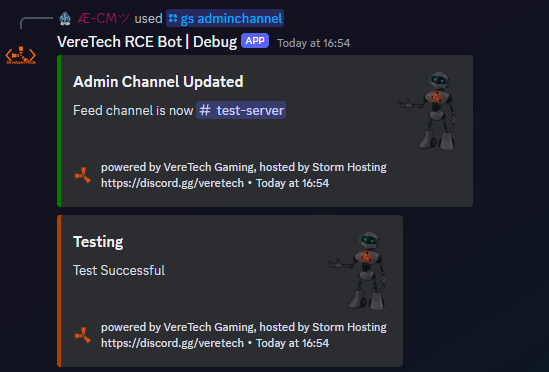](https://docs.veretech.systems/uploads/images/gallery/2024-05/ZTu9ddmtk3JikeGj-image.png)
This indicates a successful allocation of the Admin Feed and will now start to record and send embeds within this channel.
[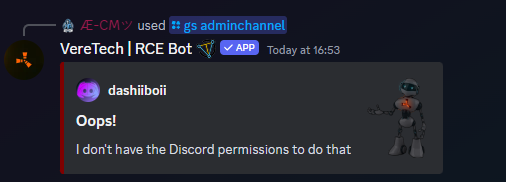](https://docs.veretech.systems/uploads/images/gallery/2024-05/CVKht7YDKWKlMLPV-image.png)
This response will require you to revisit your permissions set for this page.
Once a successful connection has been made you will start to receive your feeds in you nominated channel - This will be in 5 minute intervals or once a list of 25 has been populated, whichever comes first. Please see below for the example of the Admin Channel feed;
[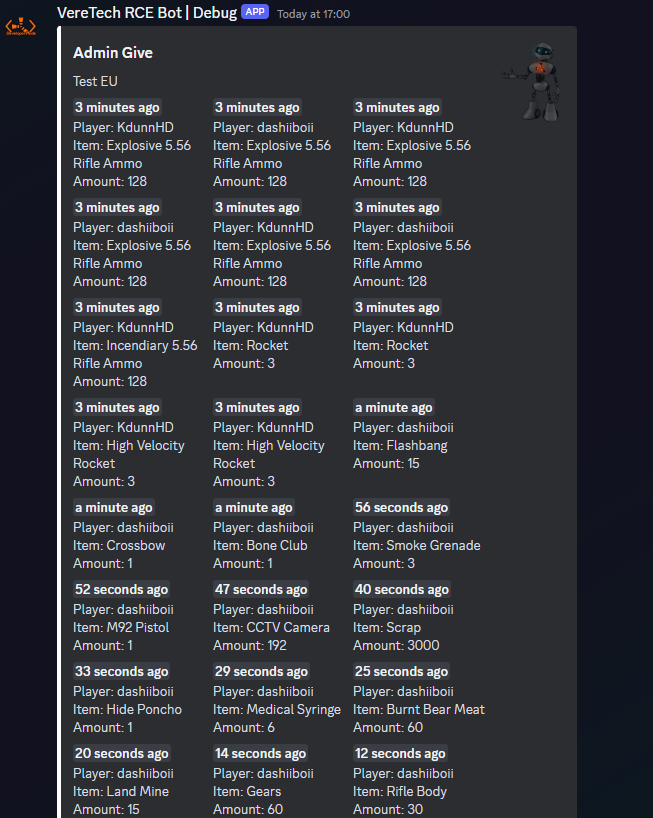](https://docs.veretech.systems/uploads/images/gallery/2024-05/qTHQJ40YJKMt6xEO-image.png)
#####
Changing Nominated Channel
Should you wish to have a different channel show these feeds then all you need to do is repeat the above process with you new channel (*Please Note: Admin Feeds will only show on ONE channel*)
##### Disabling the Admin Channel
To disable the "Admin Channel" you have 2 options - You can either delete the channel and it will stop recording and sending the messages, or you can again run the command **/gs adminchannel** This time when you select the Server, do not select a channel and hit send. This will now disable your Admin Channel Feed